During the manufacturing process manufacturing expiration dates will need to be selected and applied. Depending on the ingredients used and or the product being produced these expiration dates may need to vary. The MFG/EXP Types section allows you to edit and or create new MFG/EXP Types for your system. Once created these items can be selected for usage on future production.
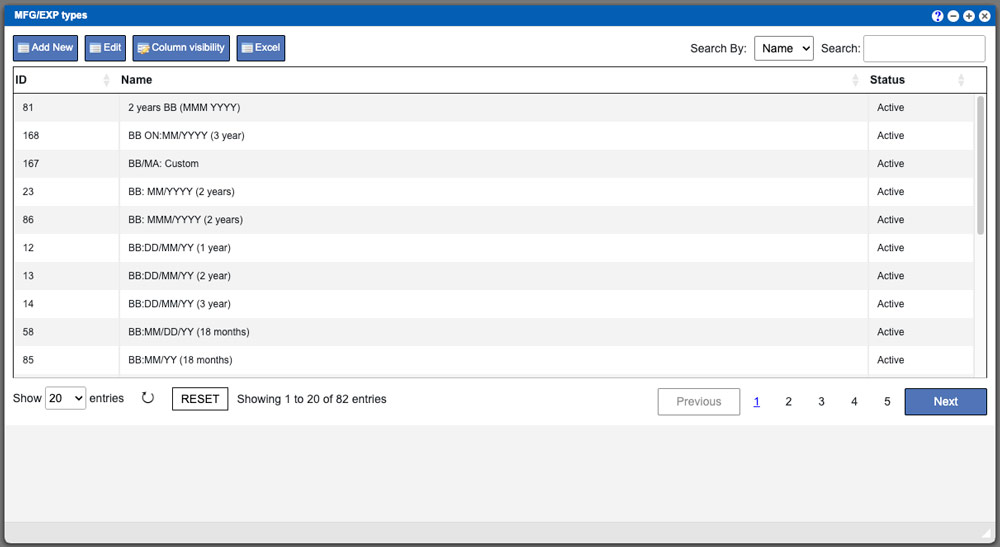
Upon entering this section you are faced with a grid. The grid displayed will list all MFG/EXP types currently available in the system. These entries can be sorted by clicking the column titles, using the search function or filtering by additional options. For more information on Grid Sorting click here.
You can see a few examples in the image above and we will leave a few more below:
• BB:DD/MM/YY (1 year)
• BB: MMM/YYYY (2 years)
• BB:MM/YYYY (3 year)
• EXP MM/DD/YY (3 year)
Virtual Ops System Location/Navigation:
Administration > Configuration > MFG/EXP Types
Grid Action Buttons
Add new – Select this action to add a entry to the system.
Edit – Select a row/entry on the grid and then select the Edit button.
Column Visibility – By selecting this option you can change the visible columns per the grid you are on. These selections are saved per user/browser per grid.
Excel – Selecting this action will export the currently displayed grid data to excel.
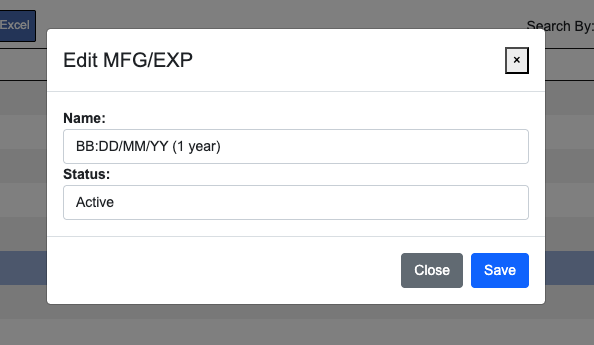
To create a new MFG/EXP Types select the “Add New” action button at the top of the grid. Enter your naming convention into name input field and then click the “Add” button at the bottom to complete the process. Once an entry is created it cannot be deleted. It can however be set to inactive. To do this you will need to select the entries row from the grid by clicking it, then click the “Edit” action button above the grid. In the next window you can then set the status to inactive. See example image below – click to enlarge.